Keep the details
Open an item to see its catalogue information and collection status. Keep the record alongside the things you own.

A little order. A lot of stories.
Books, films, games, comics, records and board games. Keep a record of the items in your collection and their details in one personal catalogue.
Make room for the whole collection
A collection rarely fits a single category. Media Catalog brings yours together, with the information that belongs to each item.
Open an item to see its catalogue information and collection status. Keep the record alongside the things you own.
Browse the catalogue, search for an item, or narrow the list with filters. A few familiar tools for a growing collection.
Switch between four existing skins, from a compact list to a roomier view. Your catalogue stays the same.
You choose where it lives
The Windows and Android apps offer two ways to open a catalogue.
01 / Local catalogue
Create or open a catalogue on this device. The app includes what local mode needs: there is no separate server to start.
Your local catalogue stays on this device.
02 / Remote catalogue
Connect to an existing Media Catalog server. Browse and work with the catalogue stored there, through the same client.
Local and remote are separate catalogue locations. Switching does not automatically sync them.
For experienced server users: the Docker image vargajoe/media-catalog
Same collection, different rhythm
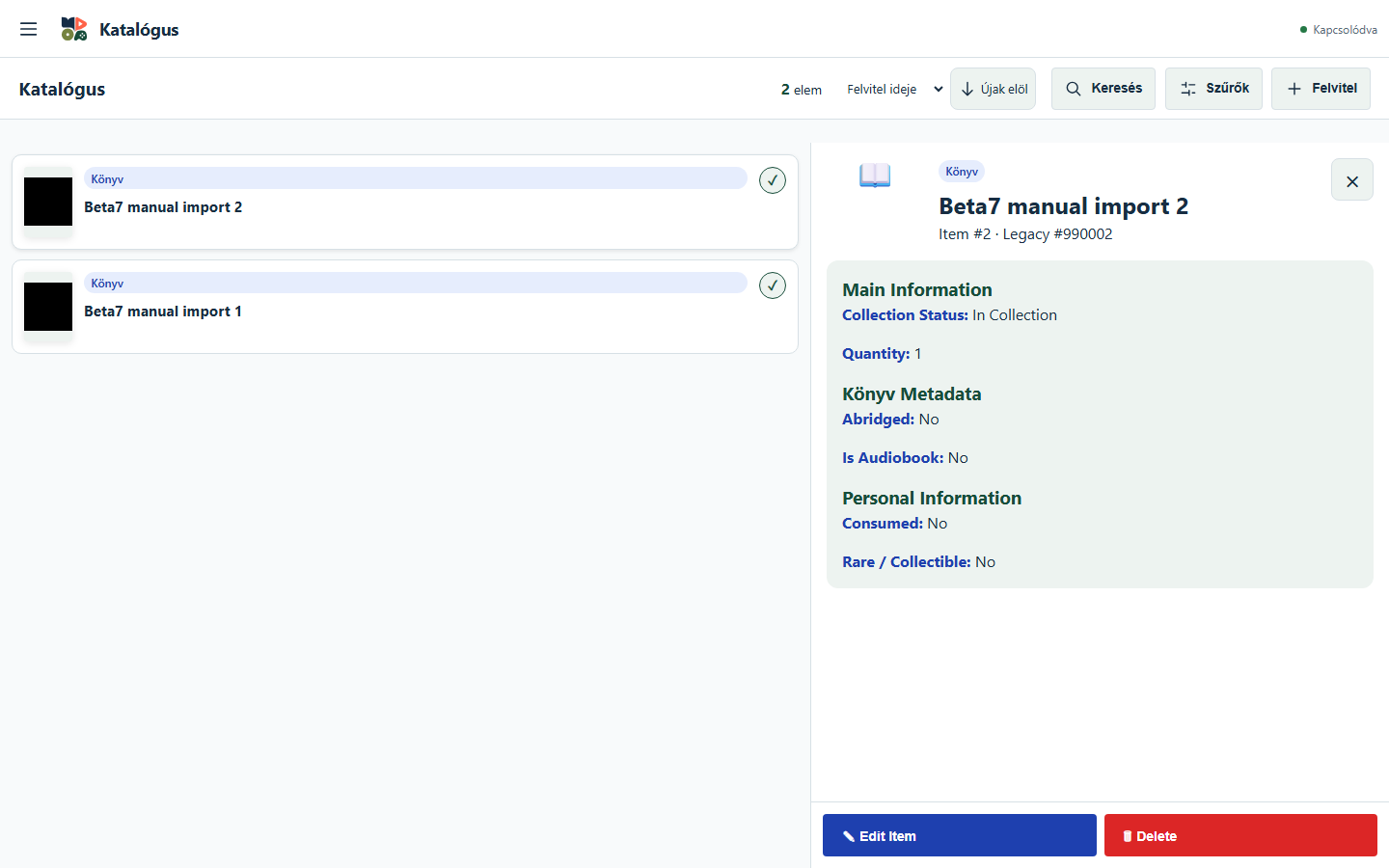
These are the four skins already in the app. Explore authentic screenshots of the same two-book demo, without changing your own catalogue.
A roomier list with the selected item’s details alongside it.
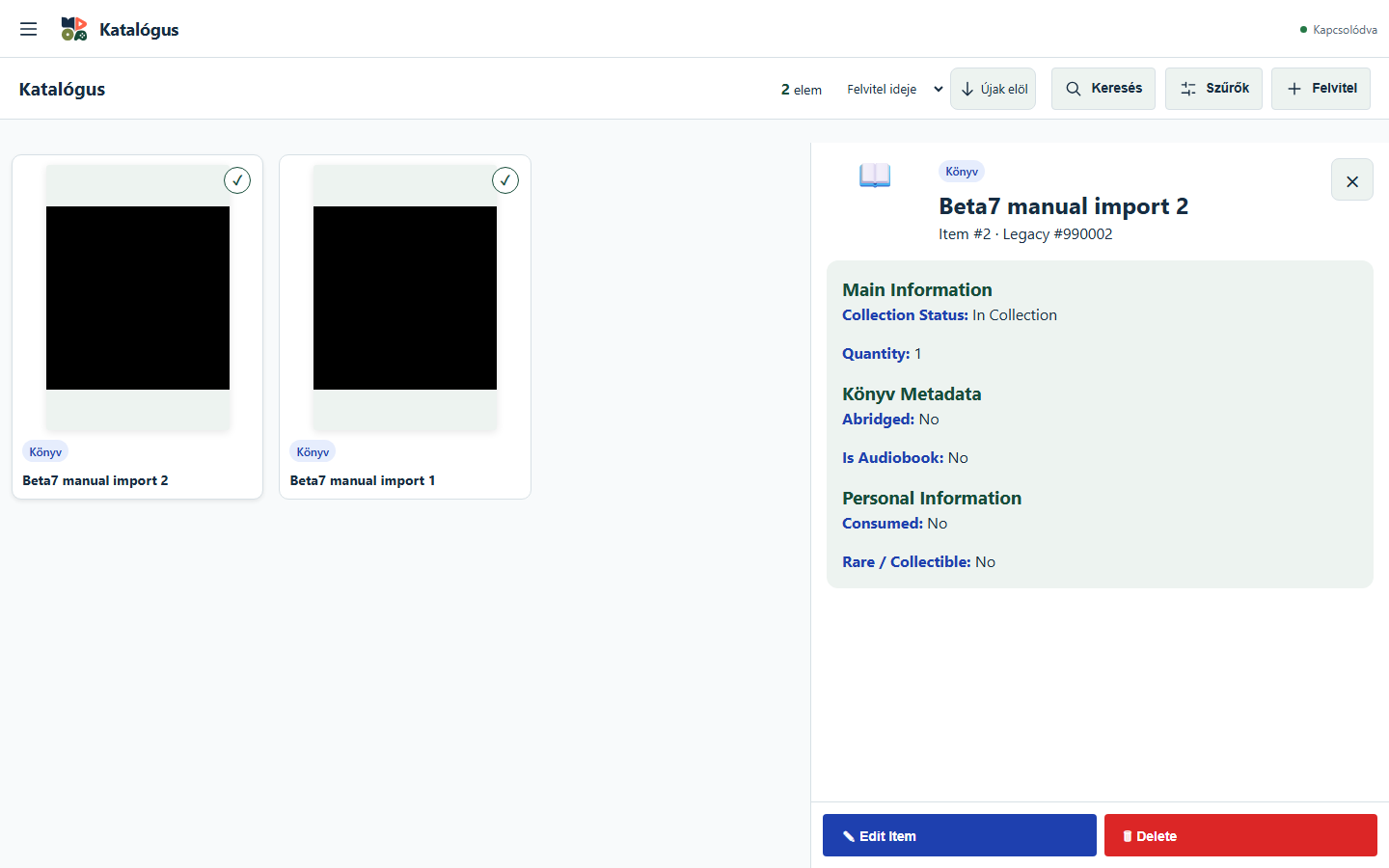
A compact presentation for browsing items and their details.
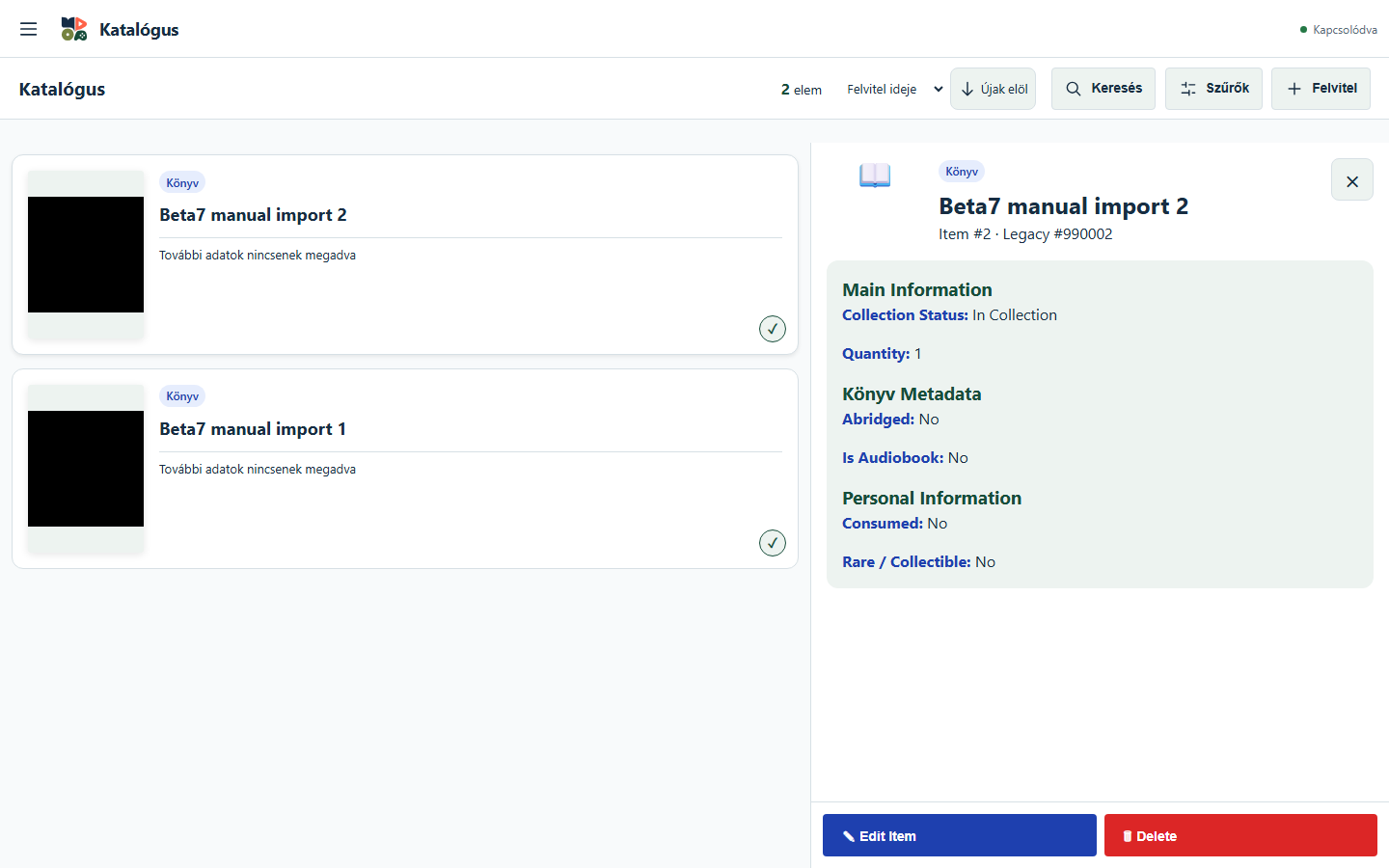
An alternative layout for your catalogue and the selected item.
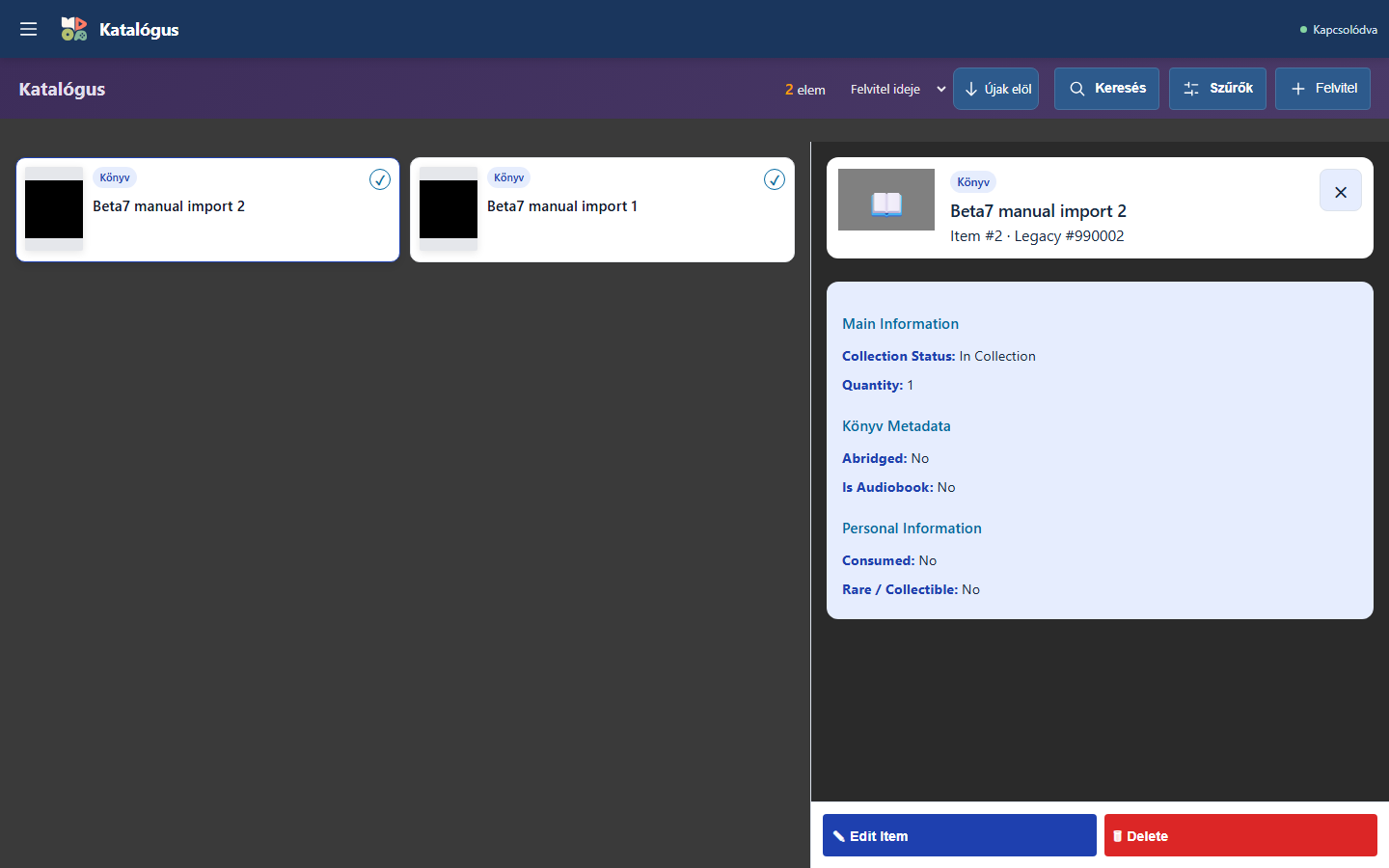
The existing Collection skin, with its dark catalogue background.
Actual app screenshots · Generated demo data · Hungarian app interface
From download to first item
On Windows, unpack the portable ZIP and run MediaCatalog.exe. On Android, install the APK and allow installation from your chosen source when prompted.
Create a new local catalogue, open an existing one, or connect to your own remote server from the launch screen.
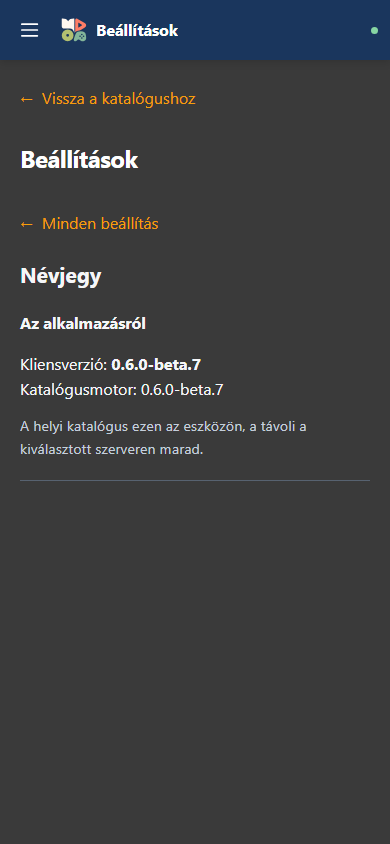
Add your first items, browse their details, and pick a skin in Settings. You can choose to resume the last catalogue on the next launch.
Take it to your collection
Two native beta clients. Choose the one for your device, then choose a local or remote catalogue inside the app.
Beta release 0.6.0-beta.7Portable · x64 · ZIP
Unpack into a folder of your choice and run MediaCatalog.exe.
Microsoft Edge WebView2 Runtime is required. This beta is unsigned; Windows may show a security warning.
Download for WindowsOpens a public Mega file page
MediaCatalog-0.6.0-beta.7-windows-x64.zip
98.5 MiB 103,298,049 bytes
deed4f81ed75154e3d7d731c0fabe2d84ce6681768407e04e1173b4591dabf6bSideload · arm64-v8a + x86_64 · APK
Install directly from the APK. Uses the existing beta signer; version code 15.
A direct beta installation, outside the Play Store. Android may ask you to allow installation from this source.
Download for AndroidOpens a public Mega file page
MediaCatalog-0.6.0-beta.7-android-beta.apk
146.7 MiB 153,869,703 bytes
4982d632024357eeab29ef7efbd2591de92ff0957d2e1f36249d6f7d49470f5bLocal and remote catalogue flows have been checked in Windows and on a physical Android 13 phone. This is still a beta: keep a backup of catalogues you care about before trying it.
Photo/OCR intake is present; clearer feedback, multiline titles and adjustable automatic cover selection are future improvements. Richer person profiles and more detailed item cards are also planned.
A few useful answers
For a local catalogue, the Windows and Android apps include the local engine. You do not need to start a separate server. Remote mode is for connecting to a server you already have.
Local catalogues stay on their own device. Remote mode works with a catalogue on your selected server. There is no automatic sync between a local catalogue and another device or server.
Closing the catalogue and exiting the app are separate actions. Settings can resume a catalogue left open at the next launch. A catalogue you explicitly close stays closed until you choose it again.
The download buttons open public Mega file pages for the ZIP and APK. Use the SHA-256 values shown here, or the checksum file, to verify the downloaded bytes. This website does not host the app packages.